
Adding your first Device to Home Assistant
For the purpose of this tutorial we are using the following setup:
- A Linux based installation of Home Assistant either using a container or the Home Assistant Operating System
- A ZigBee connector compatible with the ZigBee Home Automation Integration, e.g. the Nortek GoControl USB Zigbee/Zwave or the Sonoff Zigbee 3.0 USB Dongle plus
- Aqara Motion Sensor or Aqara Motion Sensor P1 (both use Zigbee)
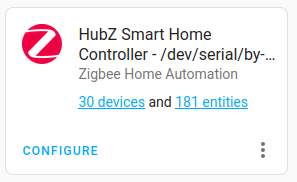
At this point you should have the ZigBee Home Automation set up and ready to talk to the Zigbee network. It should look something like this under ‘Settings’ → ‘Devices’ (it might have no devices if you have not added any):
Adding a ZigBee device is very similar to pairing a Bluetooth device on your phone. The device needs to be set into “pairing” mode and then the server (in this case Home Assistant) needs to search for it.
First, you need to set the device into pairing mode. For the Aqara Motion sensor, press the small, indented button for five seconds.

Once it’s in pairing mode, start the device search in Home Assistant. The device search can be found under Settings → Devices and Services → Zigbee (click on the devices link) → Add device.
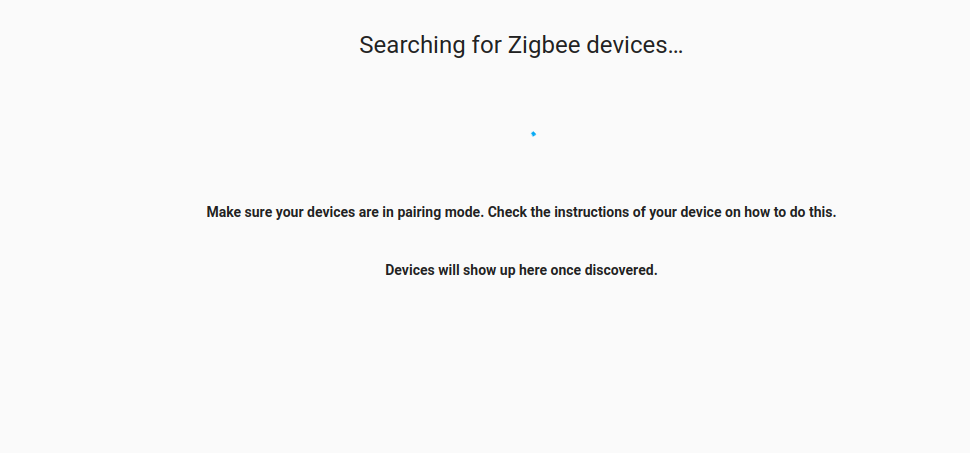
It might take anywhere from 10-30 seconds for the device to show up. Sometimes it is necessary to “wake” the device. Just press the indented button which should make the blue LED flash.
Once the device has been found Home Assistant will display the following:
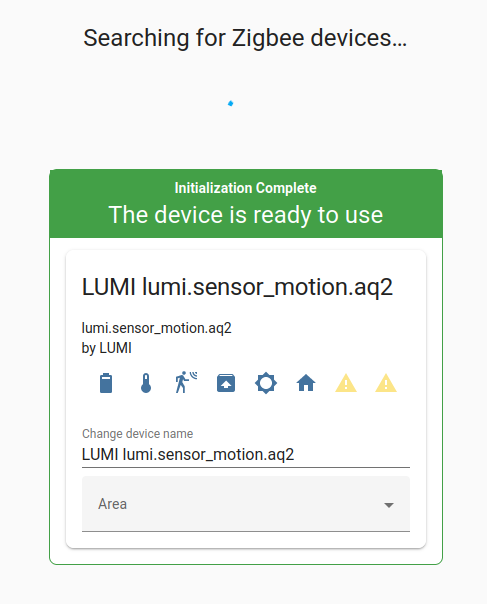
The icons show that it found a battery, temperature, motion and illumination sensors on the device.
After picking an ‘area’ the device is ready to be used (it might take another 30-60 seconds for the search to finish even after it has found the device, but you can close this page beforehand). For the purpose of this guide, the motion sensor has been assigned to the ‘Library’ area:
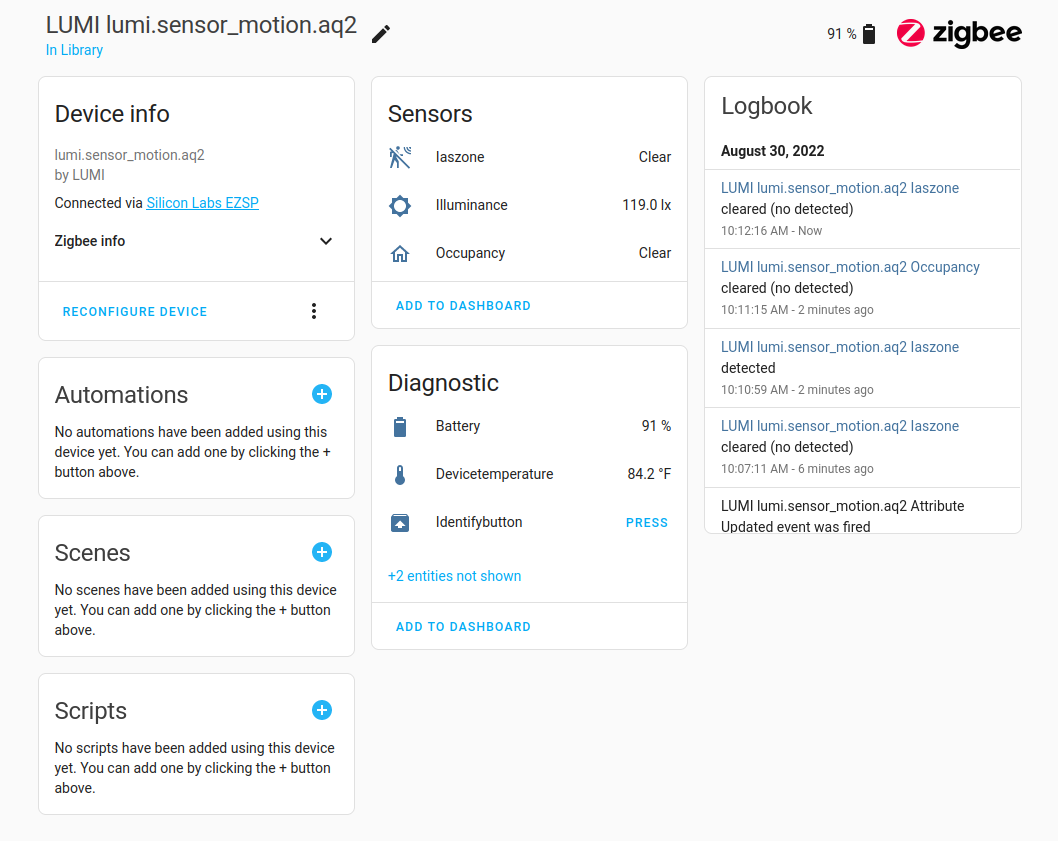
The battery isn’t always correct for some reason. But the temperature, illuminance and all other sensors should work correctly.
The last step is choosing what to automate. On the sensor screen, click on the ‘+’ next to automations. The following options will show up
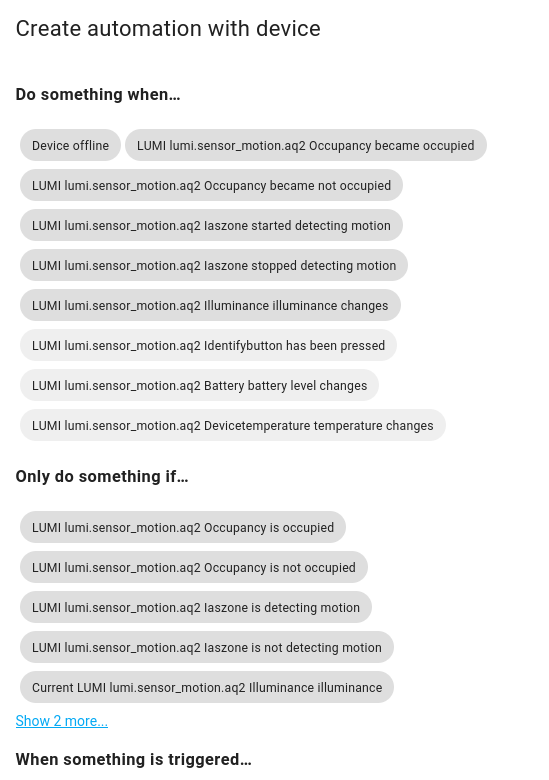
A simple choice is to click on ‘started detecting motion’. This will take you to the ‘New Automation’ section.