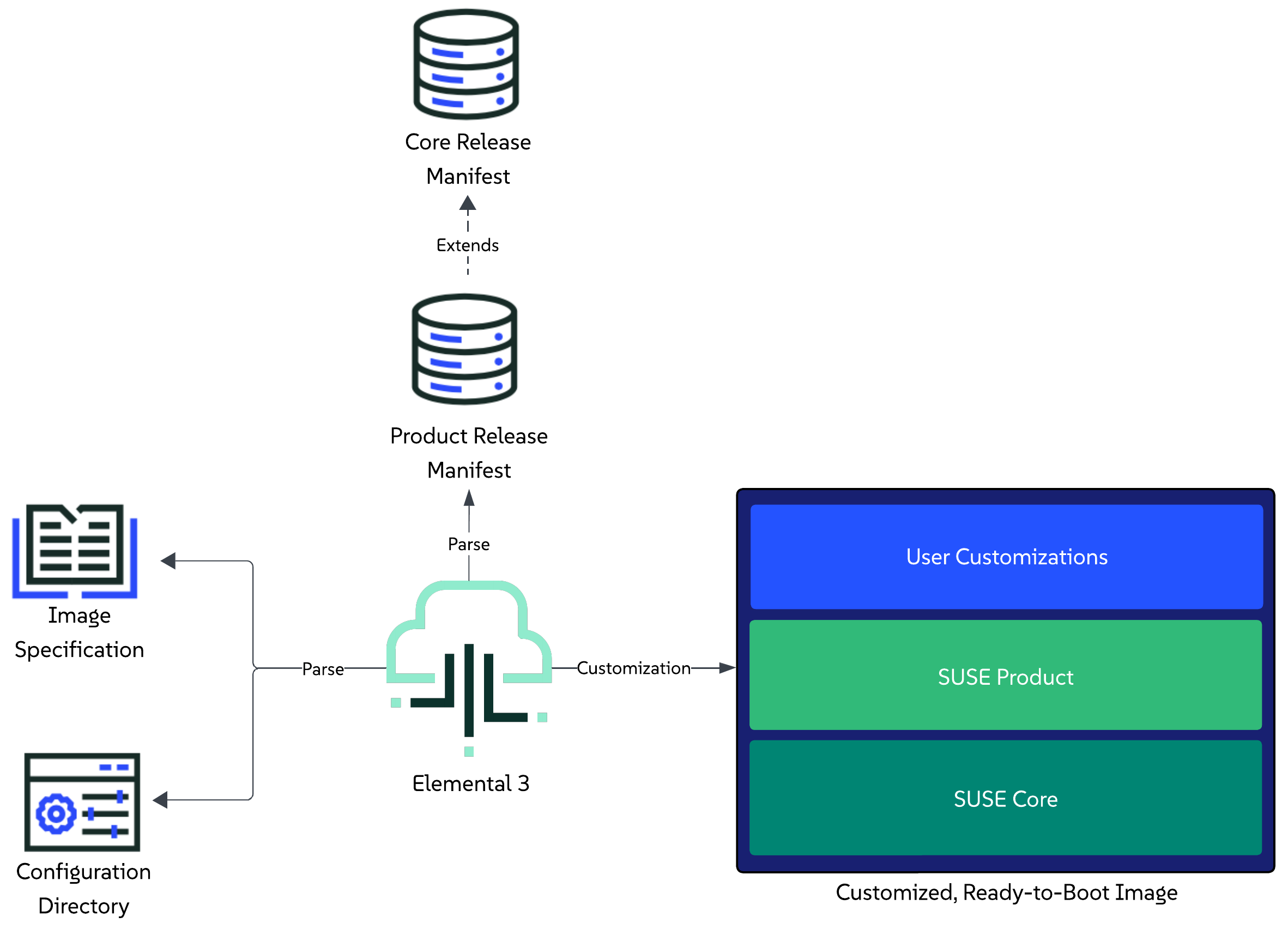
This section provides an overview of how the elemental3 command-line interface enables users to customize and extend an image that is based on a specific set of components defined in a release manifest.
For general information about the customization process, refer to the Customization Process section.
For information on how to boot a customized image, refer to the Booting a customized image section.
For real-life examples, refer to the Examples section.
The customization process is executed through the elemental3 customize command.
As part of the command, users are expected to provide:
elemental3 customize -h.Please familiarize yourself with both points before attempting to customize your first image.
For further understanding of the customization process, you can also refer to the following sections:
Currently, the image customization process has the following limitations:
x86_64 platforms.Elemental is in active development, and these limitations will be addressed as part of the product roadmap.
NOTE: The user is able to customize Linux-only images by excluding Kubernetes resources and deployments from the configuration directory (regardless of whether this is under
kubernetes/manifests,kubernetes/cluster.yamlorrelease.yaml). This is currently an implicit process, but it is possible that an explicit option for it (e.g. a flag) is added at a later stage.
This section provides a high-level overview of the steps that Elemental’s tooling goes through in order to produce a customized and extended image.
Steps:
release.yaml file of the configuration directory.core platform release manifest.core platform release manifest.
Starting the customization process can be done either by directly working with the elemental3 binary, or by using the elemental3 container image. Below you can find the minimum set of options for running both use cases.
sudo elemental3 customize --type <raw/iso> --config-dir <path>
IMPORTANT: The above process is long running, as it involves pulling multiple component images over the network. For a quicker execution, use locally pulled container images in combination with the
--localflag.
Unless configured otherwise, after execution, the resulting ready-to-boot image will reside in the configuration directory path and use the image-<timestamp>.<image-type> naming format.
NOTE: You can specify another path for the output using the
--output (-o)option, however, be mindful if running Elemental 3 from a container, as it would require including the mounted configuration directory as a prefix (e.g. –output /config/).
IMPORTANT: Access to SUSE’s internal VPN is required. As of this moment, our component images are not publicly available. This will change in the future.
NOTE: This section assumes you have pulled the
elemental3container image and referenced it in theELEMENTAL_IMAGEvariable.
Run the customization process:
podman run -it -v <PATH_TO_CONFIG_DIR>:/config $ELEMENTAL_IMAGE customize --type raw
podman run -it -v <PATH_TO_CONFIG_DIR>:/config $ELEMENTAL_IMAGE customize --type iso
IMPORTANT: The above process is long running, as it involves pulling multiple component images over the network. For a quicker execution, use locally pulled container images in combination with mounting the podman socket to the
elemental3container image and specifying the--localflag:
- Start Podman socket:
systemctl enable --now podman.socket- Run the
elemental3container with the mounted podman socket:podman run -it -v <PATH_TO_CONFIG_DIR>:/config -v /run/podman/podman.sock:/var/run/docker.sock $ELEMENTAL_IMAGE customize --type <raw/iso> --local
Unless configured otherwise, the above process will produce a customized RAW or ISO image under the specified <PATH_TO_CONFIG_DIR> directory.
NOTE: The below RAM and vCPU resources are just reference values, feel free to tweak them based on what your environment needs.
The customized image can be booted as any other regular image. Below you can find an example of how this can be done by using Libvirt to setup a virtual machine from a customized image that has a static network configured for machines with the FE:C4:05:42:8B:01 MAC address.
RAW disk image:
virt-install --name customized-raw \
--ram 16000 \
--vcpus 10 \
--disk path="<customized-image-path>",format=raw \
--osinfo detect=on,name=sle-unknown \
--graphics none \
--console pty,target_type=serial \
--network network=default,model=virtio,mac=FE:C4:05:42:8B:01 \
--virt-type kvm \
--import \
--boot uefi,loader=/usr/share/qemu/ovmf-x86_64-ms-code.bin,nvram.template=/usr/share/qemu/ovmf-x86_64-ms-vars.bin
ISO media:
Create an empty disk.img disk image that will be used as a storage device:
truncate -s 20G disk.img
Create a local copy of the EFI variable store:
NOTE: This is needed in order to persist any new EFI entries included during the ISO installer boot.
cp /usr/share/qemu/ovmf-x86_64-vars.bin .
Boot a VM using the previously created resources, namely the customized.iso, disk.img and local EFI store:
virt-install --name customized-iso \
--ram 16000 \
--vcpus 10 \
--import \
--disk path=disk.img,format=raw \
--cdrom "customized.iso" \
--boot loader=/usr/share/qemu/ovmf-x86_64-code.bin,loader.readonly=yes,loader.type=pflash,nvram=ovmf-x86_64-vars.bin \
--graphics none \
--console pty,target_type=serial \
--network network=default,model=virtio,mac=FE:C4:05:42:8B:01 \
--osinfo detect=on,name=sle-unknown \
--virt-type kvm
NOTE: All examples in this section run with FIPS enabled by default. To disable it, simply remove the
cryptoPolicyconfiguration from the correspondinginstall.yamlfile.
This section aims at providing real-life examples of the image customization process, as described in the “Customization Process” section.
IMPORTANT: Before proceeding with the examples below, make sure you have familiarized yourself with the necessary prerequisites.
The examples will showcase how you can use the elemental3 container image to achieve the following customization use cases:
git-core go make mtools squashfs xorriso.A user wants to customize and produce a RAW image that is based on a specific Core Platform version.
Additionally, the user wants to enable compliance with FIPS, configure the image’s network and extend the environment with a custom systemd service tailored to their specific use case.
The user creates a configuration directory that describes the desired configurations that need to be applied over the desired Core Platform release.
The contents of this directory include:
bootloader and kernel command line arguments to apply during the OS installation process, along with the image’s disk size and desired FIPS policy setting.Core Platform release that will be customized and extended.Navigate to your configuration directory:
cd examples/elemental/customize/linux-only/
Following the steps for executing the customization process through a container image using locally pulled images, run the process for the desired RAW type:
NOTE: This command assumes that the Podman socket was started and the
$ELEMENTAL_IMAGEpoints to a validelemental3container image.
podman run -it -v .:/config -v /run/podman/podman.sock:/var/run/docker.sock $ELEMENTAL_IMAGE customize --type raw --local
After execution, for a RAW disk type, your examples/elemental/customize/linux-only directory should look similar to:
.
├── butane.yaml
├── image-2025-12-11T12-19-06.raw <- created by the customization process
├── image-2025-12-11T12-19-06.raw.sha256 <- created by the customization process
├── install.yaml
├── network/
└── release.yaml
Following what is described in the “Booting a customized image” section, you boot a virtual machine using Libvirt:
virt-install --name linux-only-example \
--ram 16000 \
--vcpus 10 \
--disk path="<customized-image-path>",format=raw \
--osinfo detect=on,name=sle-unknown \
--graphics none \
--console pty,target_type=serial \
--network network=default,model=virtio,mac=FE:C4:05:42:8B:01 \
--virt-type kvm \
--import \
--boot uefi,loader=/usr/share/qemu/ovmf-x86_64-ms-code.bin,nvram.template=/usr/share/qemu/ovmf-x86_64-ms-vars.bin
NOTE: Based on the
FE:C4:05:42:8B:01MAC address, during first boot this will apply the network configuration defined in the network/example-libvirt.yaml file on the machine.
Once the machine has successfully been booted with the customized image, you can verify the environment by going through the following set of steps:
Verify that the expected operating system is running:
cat /etc/os-release
Verify the custom network configuration has been applied:
ip a
Verify the machine’s hostname:
NOTE: If you have defined a MAC address that matches one of the network configuration files defined under the network/ directory, the hostname will be set to the name of that file.
cat /etc/hostname
Verify the disk size of the machine:
df -Th
Verify the environment is FIPS compliant:
fips-mode-setup --check
# Example output
FIPS mode is enabled.
Initramfs fips module is enabled.
The current crypto policy (FIPS) is based on the FIPS policy
Verify that the custom systemd service has been executed:
journalctl -u example.service
A consumer has created a release manifest for their product that extends a specific Core Platform version with additional components, namely Rancher and cert-manager.
A user wants to customize and produce a RAW image that will be running an operating system, Kubernetes distribution and Rancher version that are supported by the aforementioned consumer product.
Furthermore, using this image, the user wants to enable compliance with FIPS and setup a single-node Kubernetes cluster that will be extended with the NeuVector Helm chart along with a specific set of Kubernetes manifests that will enable access to the Rancher UI.
The user creates a configuration directory that describes the desired configurations that need to be applied over the desired Product release.
The contents of this directory include:
bootloader and kernel command line arguments to apply during the OS installation process, along with the image’s disk size and desired FIPS policy setting.NeuVector Helm chart as well as a remote manifest for the local-path-provisioner.Rancher and MetalLB.Product release manifest that the user has referred in the release.yaml configuration file.Rancher Helm chart that the user has enabled from the Product release manifest.MetalLB component setup an IPAddressPool.MetalLB component setup a L2Advertisement.rke2-ingress-nginx Helm chart and will enable its service to be of type LoadBalancer.FE:C4:05:42:8B:01 MAC address.Navigate to your configuration directory:
cd examples/elemental/customize/single-node/
Following the steps for executing the customization process through a container image using locally pulled images, run the process for the desired RAW type:
NOTE: This command assumes that the Podman socket was started and the
$ELEMENTAL_IMAGEpoints to a validelemental3container image.
podman run -it -v .:/config -v /run/podman/podman.sock:/var/run/docker.sock $ELEMENTAL_IMAGE customize --type raw --local
After execution, for a RAW disk type, your examples/elemental/customize/single-node/ directory should look similar to:
.
├── butane.yaml
├── image-2025-12-11T12-19-06.raw <- created by the customization process
├── image-2025-12-11T12-19-06.raw.sha256 <- created by the customization process
├── install.yaml
├── kubernetes/
├── network/
├── release.yaml
└── suse-product-manifest.yaml
Following what is described in the Booting a customized image section, you boot a virtual machine using Libvirt:
virt-install --name single-node-example \
--ram 16000 \
--vcpus 10 \
--disk path="<customized-image-path>",format=raw \
--osinfo detect=on,name=sle-unknown \
--graphics none \
--console pty,target_type=serial \
--network network=default,model=virtio,mac=FE:C4:05:42:8B:01 \
--virt-type kvm \
--import \
--boot uefi,loader=/usr/share/qemu/ovmf-x86_64-ms-code.bin,nvram.template=/usr/share/qemu/ovmf-x86_64-ms-vars.bin
NOTE: Based on the
FE:C4:05:42:8B:01MAC address, during first boot this will apply the network configuration defined in the network/single-node-example.yaml file on the machine.
Once the machine has successfully been booted with the customized image, you can verify the environment by going through the following set of steps:
Verify that the expected operating system is running:
cat /etc/os-release
Verify the custom network configuration has been applied:
ip a
Verify the machine’s hostname:
cat /etc/hostname
Verify the environment is FIPS compliant:
fips-mode-setup --check
# Example output
FIPS mode is enabled.
Initramfs fips module is enabled.
The current crypto policy (FIPS) is based on the FIPS policy
Setup kubectl:
alias kubectl='KUBECONFIG=/etc/rancher/rke2/rke2.yaml /var/lib/rancher/rke2/bin/kubectl'
Verify cluster node:
kubectl get nodes -o wide
# Example output
NAME STATUS ROLES AGE VERSION INTERNAL-IP EXTERNAL-IP OS-IMAGE KERNEL-VERSION CONTAINER-RUNTIME
single-node-example Ready control-plane,etcd 3m18s v1.34.2+rke2r1 192.168.122.251 <none> SUSE Linux Enterprise Server 16.0 6.12.0-160000.6-default containerd://2.1.5-k3s1
Verify that the Core Platform enabled MetalLB component is running:
kubectl get pods -n metallb-system
# Example output
NAME READY STATUS RESTARTS AGE
metallb-controller-6b59fb78f4-fk6wq 1/1 Running 0 13m
metallb-speaker-w9gtc 4/4 Running 0 13m
Verify product enabled Helm chart components:
NeuVector:
kubectl get pods -n neuvector-system
# Example output
NAME READY STATUS RESTARTS AGE
neuvector-cert-upgrader-job-ntj2d 0/1 Completed 0 9m4s
neuvector-controller-pod-79bb56d6c4-dmxmx 1/1 Running 0 11m
neuvector-controller-pod-79bb56d6c4-lq2p8 1/1 Running 0 11m
neuvector-controller-pod-79bb56d6c4-xjrk2 1/1 Running 0 11m
neuvector-enforcer-pod-wmlqx 1/1 Running 0 11m
neuvector-manager-pod-987b84867-4k88j 1/1 Running 0 11m
neuvector-scanner-pod-d8bf5677d-6k6tf 1/1 Running 0 11m
neuvector-scanner-pod-d8bf5677d-hnxfk 1/1 Running 0 11m
neuvector-scanner-pod-d8bf5677d-s67zh 1/1 Running 0 11m
Rancher:
kubectl get pods -n cattle-system
# Example output
NAME READY STATUS RESTARTS AGE
rancher-66b9664747-j2sfp 1/1 Running 0 36m
rancher-webhook-7748c7b4bf-42xg4 1/1 Running 0 22m
system-upgrade-controller-67f899b56-rzcqh 1/1 Running 0 21m
Verify that the custom Rancher Helm chart values defined under kubernetes/helm/values/rancher.yaml have been propagated to the rancher HelmChart resource:
kubectl get helmchart rancher -n kube-system -o jsonpath='{.spec.valuesContent}'
# Example output
bootstrapPassword: admin1234
hostname: 192.168.122.15.sslip.io
replicas: 1
Verify that the manifests from the kubernetes/manifests directory have been applied:
MetalLB IPAddressPool resource:
kubectl get ipaddresspools -A
# Example output
NAMESPACE NAME AUTO ASSIGN AVOID BUGGY IPS ADDRESSES
metallb-system ingress-ippool true false ["192.168.122.15/32"]
MetalLB L2Advertisement resource:
kubectl get l2advertisements -A
# Example output
NAMESPACE NAME IPADDRESSPOOLS IPADDRESSPOOL SELECTORS INTERFACES
metallb-system ingress-l2-adv ["ingress-ippool"]
RKE2 NGINX Ingress controller service is available, of type LoadBalancer and running on the 192.168.122.15 IP:
kubectl get svc rke2-ingress-nginx-controller -n kube-system
# Example output
NAME TYPE CLUSTER-IP EXTERNAL-IP PORT(S) AGE
rke2-ingress-nginx-controller LoadBalancer 10.43.117.57 192.168.122.15 80:30594/TCP,443:32133/TCP 42m
A consumer has created a release manifest for their product that extends a specific Core Platform version with additional components, namely Rancher and cert-manager.
A user wants to customize and produce a RAW image that will be running an operating system, Kubernetes distribution and Rancher version that are supported by the aforementioned consumer product.
Furthermore, using this image, the user intends to set up a multi-node Kubernetes cluster in which all nodes, both control-plane and worker, are FIPS compliant. The cluster will also be extended with the NeuVector Helm chart, along with a set of Kubernetes manifests that enable access to the Rancher UI.
The user creates a configuration directory that describes the desired configurations that need to be applied over the desired Product release.
The contents of the directory are the same as the contents for a single-node Kubernetes setup, with the following additions:
192.168.122.250, 192.168.122.251, 192.168.122.252 and 192.168.122.253 for machines with the respective FE:C4:05:42:8B:01, FE:C4:05:42:8B:02, FE:C4:05:42:8B:03 and FE:C4:05:42:8B:04 MAC addresses.Navigate to your configuration directory:
cd examples/elemental/customize/multi-node/
Following the steps for executing the customization process through a container image using locally pulled images, run the process for the desired RAW type:
NOTE: This command assumes that the Podman socket was started and the
$ELEMENTAL_IMAGEpoints to a validelemental3container image.
podman run -it -v .:/config -v /run/podman/podman.sock:/var/run/docker.sock $ELEMENTAL_IMAGE customize --type raw --local
After execution, for a RAW disk type, your examples/elemental/customize/multi-node/ directory should look similar to:
.
├── butane.yaml
├── image-2025-12-11T12-19-06.raw <- created by the customization process
├── image-2025-12-11T12-19-06.raw.sha256 <- created by the customization process
├── install.yaml
├── kubernetes/
├── network/
├── release.yaml
└── suse-product-manifest.yaml
NOTE: This section assumes that each node will be booted using a copy of the produced
customized.rawimage as disk.
Following what is described in the “Booting a customized image” section, for each desired node, you boot a virtual machine using the following template:
virt-install --name <machine-name> \
--ram 16000 \
--vcpus 10 \
--disk path="<copy-of-customized-raw>",format=raw \
--osinfo detect=on,name=sle-unknown \
--graphics none \
--console pty,target_type=serial \
--network network=default,model=virtio,mac=<node-MAC> \
--virt-type kvm \
--import \
--boot uefi,loader=/usr/share/qemu/ovmf-x86_64-ms-code.bin,nvram.template=/usr/share/qemu/ovmf-x86_64-ms-vars.bin
Where:
<machine-name> is the name of the machine as seen by virsh list.<copy-of-customized-raw> is a copy of the produced customized.raw disk that will be specific for this machine.<node-MAC> is the MAC address for the desired node, as defined in both kubernetes/cluster.yaml and network/.Much of the environment validation is the same as for the single-node Kubernetes cluster environment with following validation additions:
Validate endpoint-copier-operator is deployed:
kubectl get pods -n endpoint-copier-operator
# Example output
NAME READY STATUS RESTARTS AGE
endpoint-copier-operator-695f9b84f6-lcvmw 1/1 Running 1 (17m ago) 19m
endpoint-copier-operator-695f9b84f6-z5sk7 1/1 Running 0 19m
Validate kubernetes-vip service is created and running the IP specified in the kubernetes/cluster.yaml file:
kubectl get svc kubernetes-vip
# Example output
NAME TYPE CLUSTER-IP EXTERNAL-IP PORT(S) AGE
kubernetes-vip LoadBalancer 10.43.7.188 192.168.122.100 9345:30094/TCP,6443:30921/TCP 20m
Validate that nodes have connected in a cluster successfully:
kubectl get nodes -o wide
# Example output
NAME STATUS ROLES AGE VERSION INTERNAL-IP EXTERNAL-IP OS-IMAGE KERNEL-VERSION CONTAINER-RUNTIME
node1.example Ready control-plane,etcd 26m v1.34.2+rke2r1 192.168.122.250 <none> SUSE Linux Enterprise Server 16.0 6.12.0-160000.6-default containerd://2.1.5-k3s1
node2.example Ready control-plane,etcd 13m v1.34.2+rke2r1 192.168.122.251 <none> SUSE Linux Enterprise Server 16.0 6.12.0-160000.6-default containerd://2.1.5-k3s1
node3.example Ready control-plane,etcd 13m v1.34.2+rke2r1 192.168.122.252 <none> SUSE Linux Enterprise Server 16.0 6.12.0-160000.6-default containerd://2.1.5-k3s1
node4.example Ready <none> 8m16s v1.34.2+rke2r1 192.168.122.253 <none> SUSE Linux Enterprise Server 16.0 6.12.0-160000.6-default containerd://2.1.5-k3s1